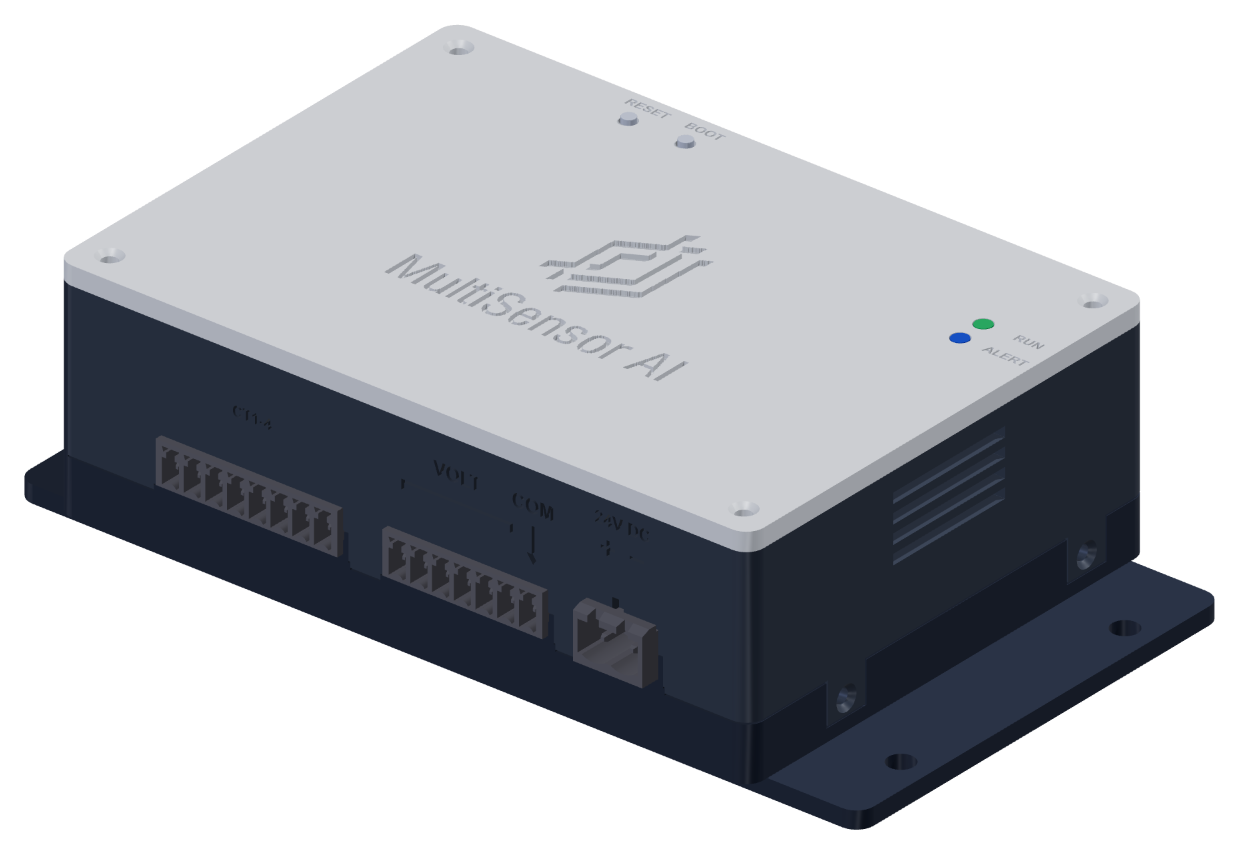
Before connecting sensors: use the lab-approved wiring and power instructions. De-energize the measured circuit before changing CT connections or selector settings. This online quick start does not replace the final installation manual.
MCSA Sensing Node.
V1 / USER MANUALPREVIEW EDITION
03 / KEEP IT CLOSE
The manual. Always within reach.
One place for the guide that belongs with your node. The final installation, operation and troubleshooting PDF is being prepared.
Preview file · final manual in preparation
Download manual preview ↓This is a clearly marked placeholder PDF, not the final installation manual.
04 / YOUR NODE, YOUR ADDRESS
Four digits. One familiar address.
Enter the four characters at the end of your node’s Wi-Fi MAC address to see its label details. The local settings URL works over Wi-Fi and Ethernet.
This generates the address format; it does not discover or connect to a node. Local access requires the same network and mDNS support.
05 / MATCH YOUR HARDWARE
The right sensor. The right setting.
The TYPE and RANGE selectors apply to all four current channels.
Current sensor
TYPE / SW701
RANGE / SW702
Combination
CR3110-3000
CR
30 A
Supported
SCT-013-030 30 A / 1 V output
SCT
30 A
Supported
CR3110-3000
CR
75 A
Supported
SCT + 75 A
SCT
75 A
Unsupported
Match the selected type to every connected CT. SCT conversion is available, but its reference calibration is unverified. Restart after correcting an invalid selection to clear a latched fault.
READ THE LIGHTS
A little light. A useful clue.
Both blink togetherFresh setup mode
ALERT blinks slowlyWaiting for the receiver; RUN is off
RUN on, ALERT offAcquisition is active
ALERT stays onLatched fault; check diagnostics
06 / WHEN YOU NEED A HAND
Back to the signal.
My node is connected, but waiting for samples.+
Check the node’s fault value in receiver diagnostics. A connected node can send status without acquiring samples. An invalid SCT + 75 A combination stops acquisition; fault 1 can also indicate analog-power or relay-feedback conditions. Correct the underlying issue and restart the node. Changing receiver ports will not clear a hardware fault.
The setup Wi-Fi disappeared. Is that expected?+
Yes. The hotspot turns off after the receiver accepts the saved connection. Rejoin your normal network and use the node’s local settings address. On restart, the hotspot is available again until the receiver connects.
Can I use multiple nodes with one receiver?+
Yes. The current receiver accepts up to 16 TCP connections. Configure each node with the same receiver computer’s LAN IP and TCP port 5443. Select “All nodes” in the dashboard to inspect them together.
How do I change Wi-Fi or receiver settings?+
Stop the receiver backend and wait for acquisition to stop. Open the node’s local settings URL and choose “Change settings.” Closing the dashboard browser tab does not stop the receiver. Keep the receiver stopped while editing so it does not reconnect.
The local .local address does not open.+
Ensure your computer and node are on the same local network. The hostname relies on mDNS, which some networks block. Use the node’s assigned Wi-Fi or Ethernet IP as a fallback. The hotspot address, 192.168.4.1, is for direct setup-network access.
The setup password is not accepted.+
Firmware 0.1.15 uses MCSA followed by the four uppercase Wi-Fi MAC suffix characters. For example, SENSING NODE F538 uses MCSAF538. Forget an older saved hotspot connection and reconnect using the printed password.
How do I reset the network setup?+
With the node powered, hold BOOT for 10 seconds. When both LEDs stay on, release BOOT to restart. This clears network setup while retaining calibration. An ordinary restart is enough to clear a latched fault after its cause has been corrected; it does not require a setup reset.
No matching topics. Try “network”, “settings” or “samples”.